Mastering Stone Veneer CAD Hatch Patterns for Architectural Design
Learn how to select, scale, and apply stone veneer CAD hatch patterns to accurately represent stacked, ashlar, and fieldstone styles in drawings.
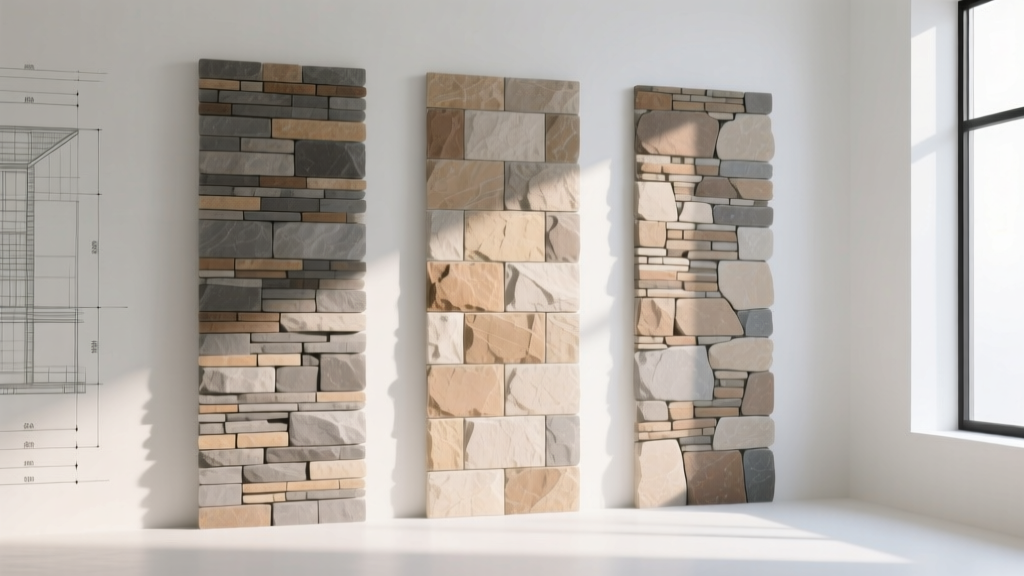
The Role of Hatch Patterns in Stone Veneer Design
In architectural drafting and design showcases, the stone veneer CAD hatch is far more than a simple texture fill. It is a critical communication tool that conveys material scale, coursing logic, and structural intent to contractors and clients. When representing adhered or anchored stone veneer systems in 2D elevations and wall sections, architects must rely on precise hatch patterns to differentiate between a rustic fieldstone application and a precision-cut ashlar facade. Misrepresenting these patterns can lead to severe estimation errors, incorrect material ordering, and a disconnect between the design intent and the final built environment.
According to the Archtoolbox stone veneer guidelines, adhered veneer units typically range from 0.5 to 2.5 inches in thickness, while anchored systems can exceed 4 inches. Translating these physical dimensions into a 2D drafting environment requires a rigorous approach to pattern scaling, layer management, and lineweight plotting. This guide details the technical execution of stone veneer hatches in AutoCAD and BIM environments, ensuring your design documents are both visually compelling and technically accurate.
Anatomy of a Custom Stone Veneer CAD Hatch
While AutoCAD includes basic geometric hatches like ANSI37 or AR-HBONE, professional architectural firms rely on custom .pat files to replicate specific masonry coursing. A custom hatch file uses vector-based line definitions to draw repeating geometries. Understanding the syntax of a .pat file allows designers to create proprietary patterns that match specific manufacturer spec sheets.
Pro-Tip: Reading .PAT Syntax
A standard vector line in a hatch file follows this sequence: angle, x-origin, y-origin, delta-x, delta-y, dash-pattern. For a stacked ledgerstone pattern with 2-inch high courses, the horizontal line definition would be 0, 0,0, 0,2 (0-degree angle, origin at 0,0, no x-offset, 2-unit y-offset). Adding vertical staggers requires secondary line definitions with 90-degree angles and specific dash-gap arrays to simulate the mortar joints.
Matching Hatch Patterns to Stone Styles
Different stone veneer styles require fundamentally different drafting approaches. The visual weight and complexity of the hatch must match the physical characteristics of the material. Below is a decision matrix for selecting and scaling hatches based on the four primary stone veneer categories.
| Stone Style | Pattern Characteristics | Scale Factor (1/4" = 1\'-0") | Lineweight Strategy |
|---|---|---|---|
| Ashlar | Staggered rectangular blocks, varying lengths, consistent heights. | 12 to 18 | 0.13mm mortar, 0.25mm stone edge. |
| Stacked | Aligned horizontal and vertical joints, grid-like appearance. | 8 to 12 | Uniform 0.18mm for all joints. |
| Fieldstone | Irregular, organic, non-repeating polygons with thick mortar. | 24 to 36 | 0.30mm stone, 0.50mm cut boundary. |
| Ledgerstone | Thin, continuous horizontal striations, minimal vertical joints. | 4 to 6 | 0.09mm horizontal, 0.13mm vertical. |
Scaling and Annotative Properties
One of the most common errors in architectural drafting is applying a stone veneer CAD hatch at the wrong scale, resulting in a texture that looks like gravel or an unintelligible mess of overlapping lines. When working in model space at a 1:1 scale, the HPSCALE variable must be adjusted relative to your intended viewport scale.
Calculating the Correct HPSCALE
If you are detailing a fireplace elevation at 1/2" = 1'-0" (viewport scale factor of 24), and your custom ashlar pattern was authored at a base scale of 1 (where 1 unit = 1 inch), you must set your HPSCALE to 24. However, modern CAD workflows utilize Annotative Scaling. By setting the hatch pattern to 'Annotative' in the properties palette, AutoCAD automatically calculates the HPSCALE based on the active annotation scale of the viewport. This ensures that a 4-inch stone course measures exactly 4 inches in the physical world, regardless of whether the detail is plotted at 3/4" or 1/4" scale.
Edge Case Warning: When using annotative hatches for fieldstone or rubble patterns, ensure the HPDRAWORDER system variable is set to send the hatch behind the boundary lines. Dense, irregular patterns can visually overwrite the primary wall cut lines, making the structural boundary unreadable on printed sheets.
Layer Management and Plotting for Design Showcases
A beautifully designed stone veneer elevation can be ruined during the plotting phase if lineweights are not rigorously managed. The Building Science Corporation notes that veneer wall design relies heavily on the clear delineation of the air cavity, the weather-resistive barrier, and the exterior cladding. Your CAD layers must reflect this hierarchy.
- A-WALL-VENR (Stone Face): Assign a mid-tone color (e.g., Color 252) with a 0.13mm lineweight. This represents the mortar joints and internal stone textures.
- A-WALL-VENR-BND (Stone Boundary): Assign a bold color (e.g., Color 7 or 250) with a 0.35mm to 0.50mm lineweight. This defines the absolute outer limit of the stone veneer and is critical for contractors calculating square footage and corner piece quantities.
- A-WALL-CORE (Substrate): Use a heavier hatch (like AR-CONC) at a 0.18mm lineweight to represent the CMU or framed substrate behind the cavity.
By separating the internal hatch lines from the bounding perimeter, you allow the stone texture to recede visually while the structural outline pops forward, creating a professional, readable design showcase.
Performance Optimization in Complex Elevations
Applying dense, high-resolution stone veneer CAD hatches across an entire multi-story commercial facade can bring AutoCAD to a crawl, causing fatal errors during regeneration or plotting. Fieldstone and rubble patterns, which rely on complex, non-orthogonal vector arrays, are particularly resource-intensive.
Optimization Checklist for Heavy Hatches
- Use Hatch Boundaries: Never draw the hatch over the entire wall. Use the
HATCHGENERATEBOUNDARYcommand to create precise polylines around doors, windows, and soffits, and delete the inner geometry before hatching. - Adjust MAXACT: If the hatch fails to display, increase the
MAXACT(Maximum Activated Hatches) system variable from its default of 10,000 to 50,000. - Block References for Repeating Elements: For highly detailed 3D-style 2D hatches, draw a single 4x4 foot module of the stone pattern, convert it to a Block, and array it across the facade. Blocks consume a fraction of the RAM that raw hatch objects require.
- Hardware Acceleration: Ensure the
HWACTIONvariable is set to 1 (On) to offload hatch rendering to the GPU.
Transitioning from 2D Hatches to 3D BIM
While 2D CAD hatches remain essential for detailing and permit sets, the industry standard for design showcases has shifted toward Building Information Modeling (BIM) platforms like Revit. In Revit, the equivalent of a CAD hatch is the Filled Region (for 2D drafting views) or the Surface Pattern (applied directly to 3D material properties).
When transitioning your custom .pat files into Revit, you must modify the file header. Revit requires the %UNITS=INCH or %UNITS=MM declaration at the top of the file to interpret the scale correctly. Furthermore, Revit distinguishes between 'Drafting' patterns (which scale with the view, like AutoCAD hatches) and 'Model' patterns (which maintain real-world dimensions regardless of view scale). For stone veneer, always use Model patterns for 3D elevations to ensure that a 6-inch ledgerstone course remains exactly 6 inches whether viewed in a 1/8" overall elevation or a 1.5" detailed wall section.

Summary of Best Practices
Mastering the stone veneer CAD hatch requires balancing aesthetic representation with technical precision. By utilizing custom .pat files, leveraging annotative scaling, enforcing strict layer lineweights, and optimizing system variables for performance, architects can produce construction documents that are both beautiful and buildable. Always cross-reference your hatch scales with the specific manufacturer's dimensional data to ensure the drawing accurately reflects the physical product being installed on the job site.
Written by
Marcus ChenMarcus Chen is a licensed structural engineer (PE) and building materials analyst with over 12 years of experience across residential, commercial, and industrial construction. He holds a Master of Science in Civil Engineering from UC Berkeley and spent six years at Thornton Tomasetti before transitioning to independent consulting and technical writing. Marcus specializes in material selection for seismic-prone regions, concrete reinforcement strategies, and lifecycle cost analysis. His work has been cited by the American Concrete Institute (ACI) and the Structural Engineers Association of California (SEAOC). When he is not on a job site or at his desk, you will find him hiking the Sierra Nevada or restoring a 1920s craftsman bungalow in Oakland, CA.
More from Marcus Chen
View all
Construction Cost
How Much Did the Eiffel Tower Cost to Build?
How much did the Eiffel Tower cost to build in 1889? We adjust for inflation and compare its budget to modern skyscraper construction.
Aug 4, 2026

Fire Resistance
What Is a Fire Resistant Material? Testing & Certification Guide
Discover what is a fire resistant material through ASTM and UL testing. Learn how fire ratings, certifications, and assemblies work in construction.
Aug 4, 2026

Construction Cost
How Much Did the Burj Khalifa Cost to Build?
How much did the Burj Khalifa cost to build? We break down the $1.5B project and extract 5 money-saving strategies for your next build.
Jul 30, 2026